Missing Product Picture on Inventory List
1 min
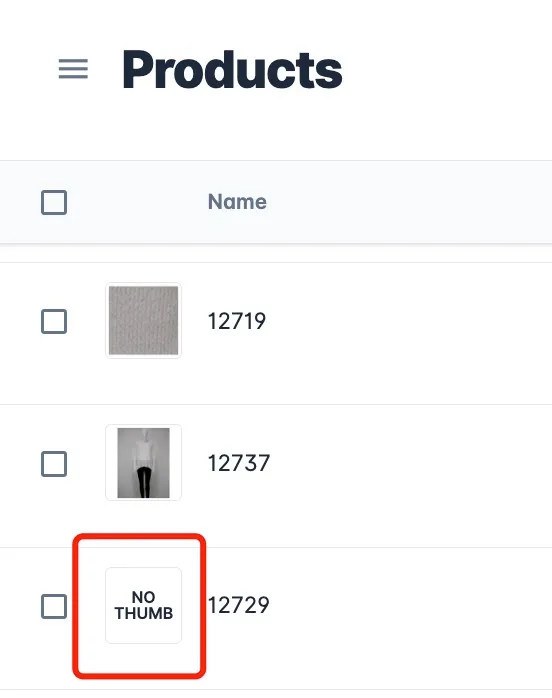
missing images
In most cases, "no thumb" on a product listing image will show up if a default image not set up for the product's default variation.
From the product listing page, click the pen button to open product editing page.
Go to "Variations" and find the default variation. (the one with a green star next to it)
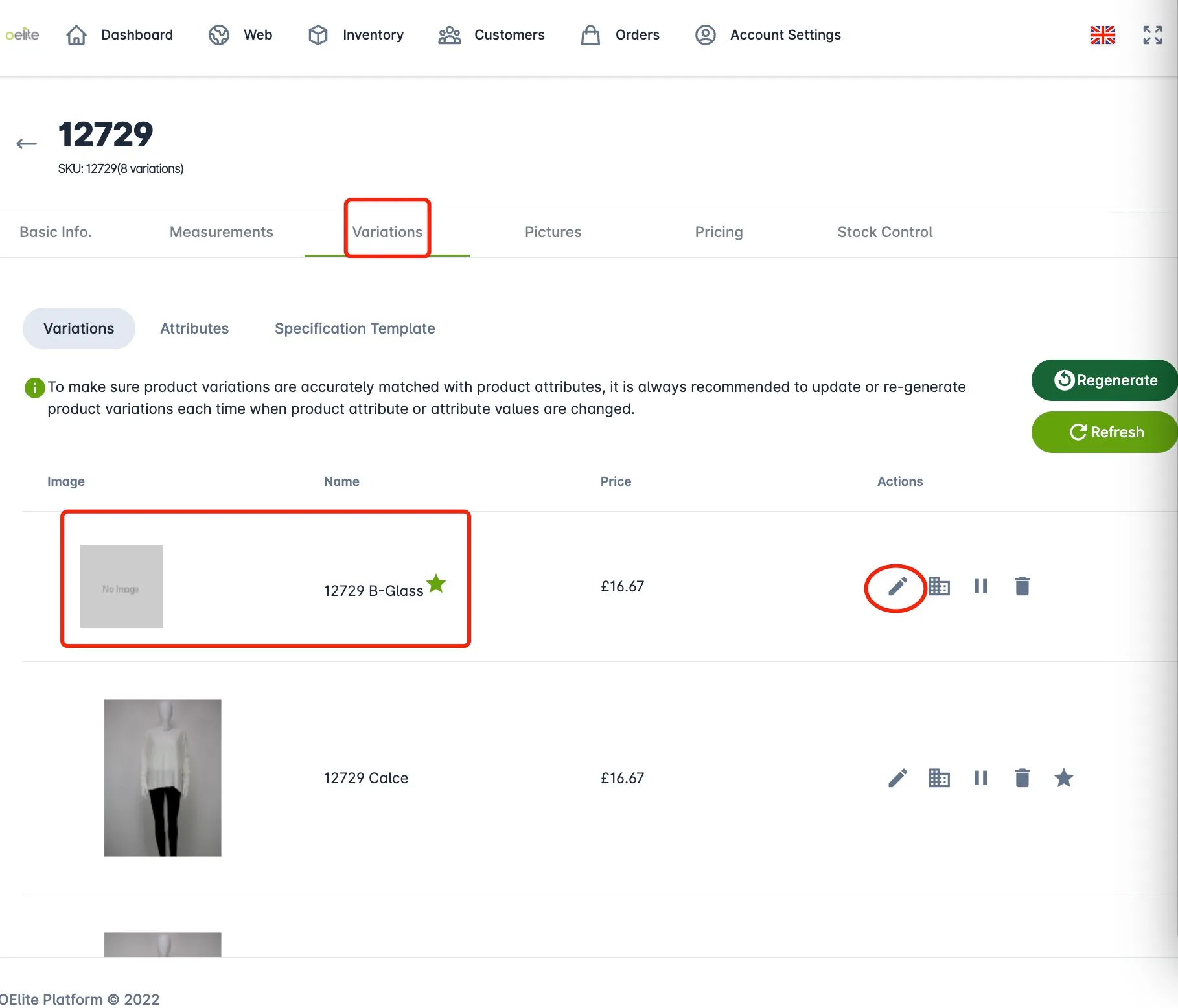
Click the pen button on the right to edit the variation. In the pop-up window, go to "Pictures" to upload new prictures or select from uploaded pictures for the variation.
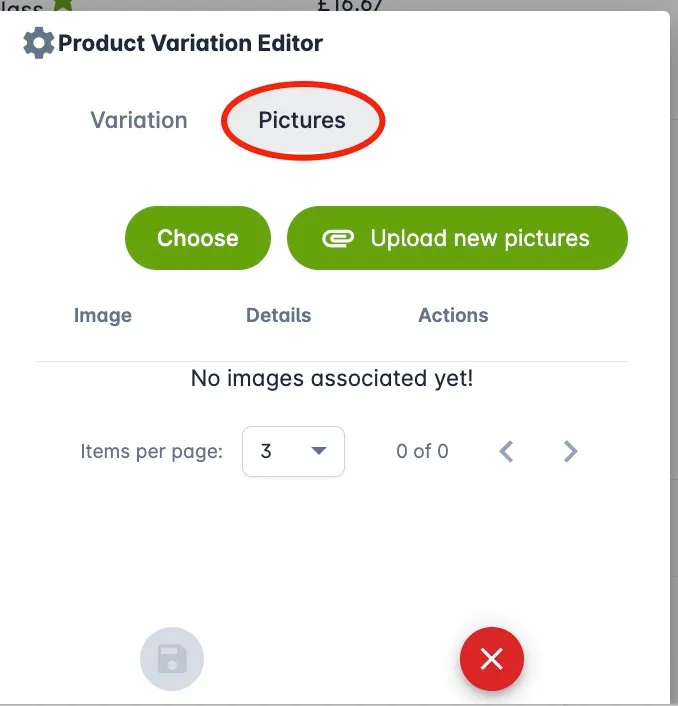
Once the image is added, the problem should be resolved.